Interior Design Client Presentation: Get Sign-Off Faster
A client presentation is not a portfolio: it is a sequence of decisions. Here is a page-by-page structure, plus how to handle alternatives, budget and follow-up so approvals come quickly.
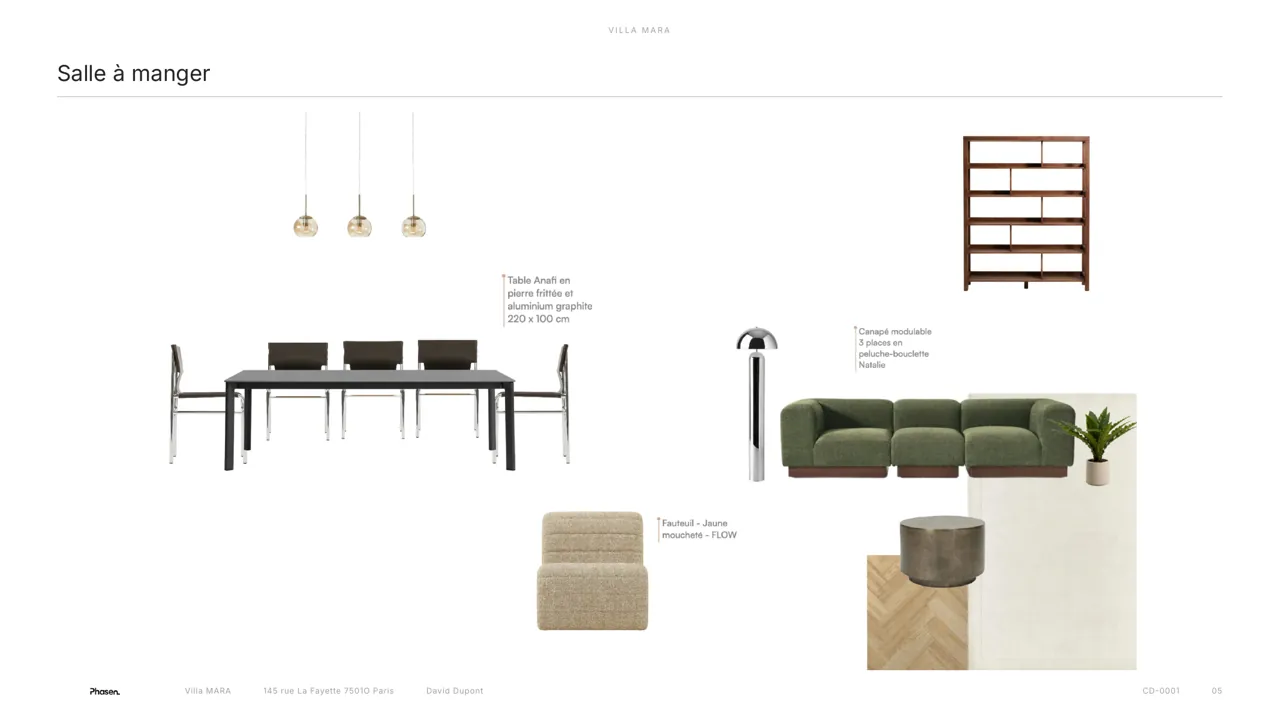
An interior design client presentation gets signed off quickly when every page asks for one clear decision. Open with the brief, show the direction through a moodboard and a render, then go room by room with real products, prices and dimensions. Prepare alternatives for the pieces most likely to be questioned, put the budget in front of the client rather than hiding it at the end, and give them a simple way to approve item by item afterwards. Then follow up on a schedule, not on hope.
Before the meeting: decide what you need approved
The most common reason a presentation does not produce decisions is that nobody defined which decisions were expected. Before you open your layout software:
- Confirm who decides. If one partner signs off and the other is absent, expect to present twice. Ask for both.
- List the decisions for this meeting. For example: overall direction, sofa, dining table, lighting scheme, budget envelope per room.
- Re-read the brief. Note the three or four requirements the client stressed most; you will refer to them explicitly.
- Check availability and lead times for the key pieces. Presenting a sofa that turns out to be discontinued costs you credibility.
- Order samples of the main fabrics and finishes so the client can touch them in the meeting.
A page-by-page structure that leads to sign-off
| Page | Content | Decision you want |
|---|---|---|
| 1. Cover | Project name, client, date, your branding | None: set the tone |
| 2. Brief recap | Requirements, constraints, what stays, budget envelope | “Yes, that is what we asked for” |
| 3. Concept | The three words, palette, moodboard for the home or main space | Agreement on the direction |
| 4. Render | One image per key room, built from the selected products | Emotional buy-in |
| 5. Room pages | Products with image, supplier if shown, dimensions, quantity, price | Approval item by item |
| 6. Alternatives | Two or three options for questioned pieces, with price and lead-time difference | A choice, not a new search |
| 7. Budget summary | Total per room, deliveries, fees, against the target budget | Budget confirmed or trade-offs agreed |
| 8. Next steps | Approval deadline, order timeline, key lead times | A date for final sign-off |
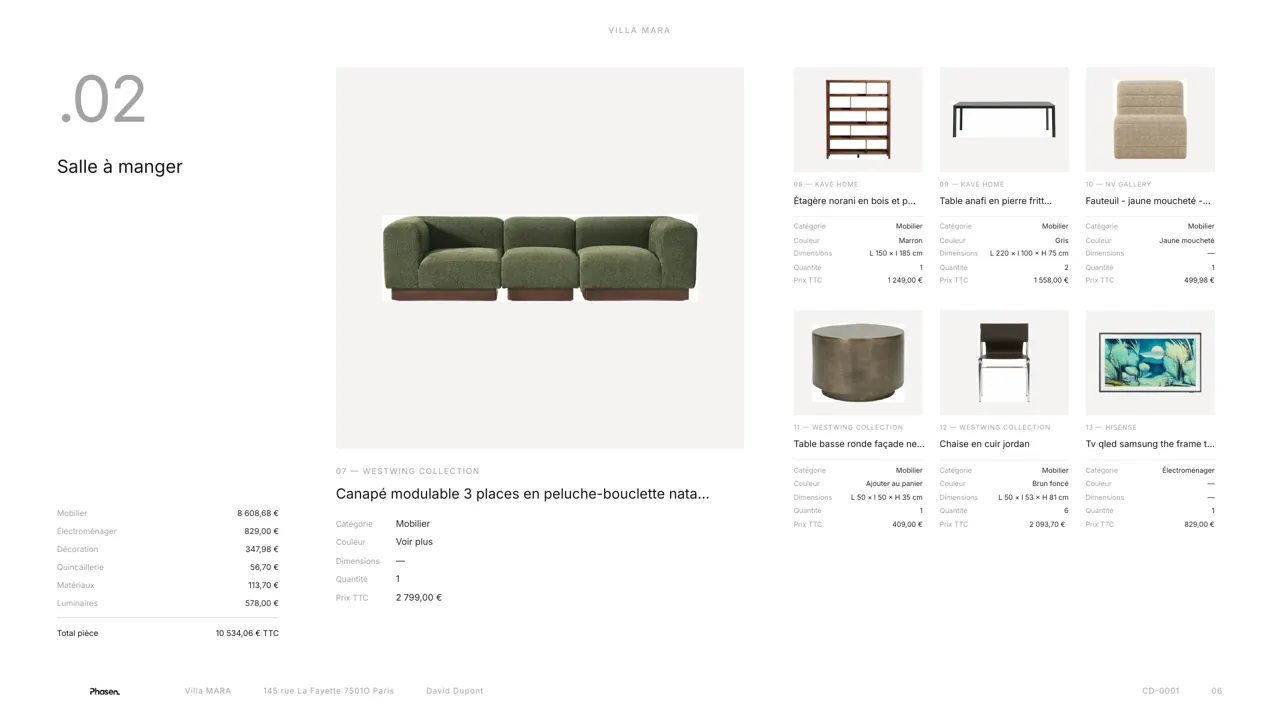
Keep the room pages consistent: same layout, same photo angle, cut-out products on a clean background, the main piece large and the supporting items smaller. Consistency makes the project look considered and lets the client focus on choices, not on decoding pages.
What every room page needs
- The room name and a small plan or key, so the client knows where they are.
- The main piece, large, with its name, finish and dimensions.
- Supporting products with image, dimensions, quantity and price, in the same order every time.
- The room total, split by category if the room is large: furniture, lighting, textiles, accessories.
- A clear marker for anything not yet confirmed, such as an item awaiting a quote or with a long lead time.
Running the meeting
Plan the meeting in the same order as the document, and keep control of the pace. One possible running order for a full-home presentation:
- Brief recap (a few minutes): confirm nothing has changed since you last spoke, including budget and timing.
- Concept and render: present the direction, let the client react, and pause until you have agreement on it.
- Room by room: go through the main pieces and ask for a decision on each one before moving on. Note open questions as you go.
- Alternatives: show them only when a piece is questioned, then return to the room.
- Budget: review the summary and agree any trade-offs.
- Next steps: confirm the approval deadline, who receives the link and when you will follow up.
Take notes item by item, not in general terms. “Client prefers the darker oak for the dining table” is actionable; “client liked the dining room” is not.
Concept and visuals: make the room readable
Many clients struggle to picture a room from a flat moodboard. Present the board first to explain the logic, then a render to show the result. If you build your moodboard from the actual selected products, the render can show those same products in a realistic space: Phasen generates AI renders from your boards in seconds, so you can even compare two directions before the meeting. A render made from generic furniture creates expectations your selection will not meet.
Presenting alternatives without reopening the project
Alternatives speed up decisions when they are prepared and framed; they slow everything down when they invite a fresh search.
- Two or three options at most, side by side, under the same item.
- Always recommend one, and say why: comfort, durability, lead time, fit with the scheme.
- Show the difference in price and lead time against your main choice.
- Only for the pieces that need it: the sofa and the rug, not every cushion.
Talking about budget without killing the mood
Budget kept until the last page turns the end of the meeting into a negotiation of everything that came before. Show the indicative total per room on each room page, then the full summary with deliveries and fees against the target budget. For private clients, make clear whether figures include VAT. If the selection is over budget, come with the trade-offs already identified: which items can switch to a cheaper alternative, which can wait for a second phase.
How you present prices depends on your fee model: client prices only, or trade prices plus a procurement fee. Our guide to interior design fees and markup covers the options.
Move approval online, item by item
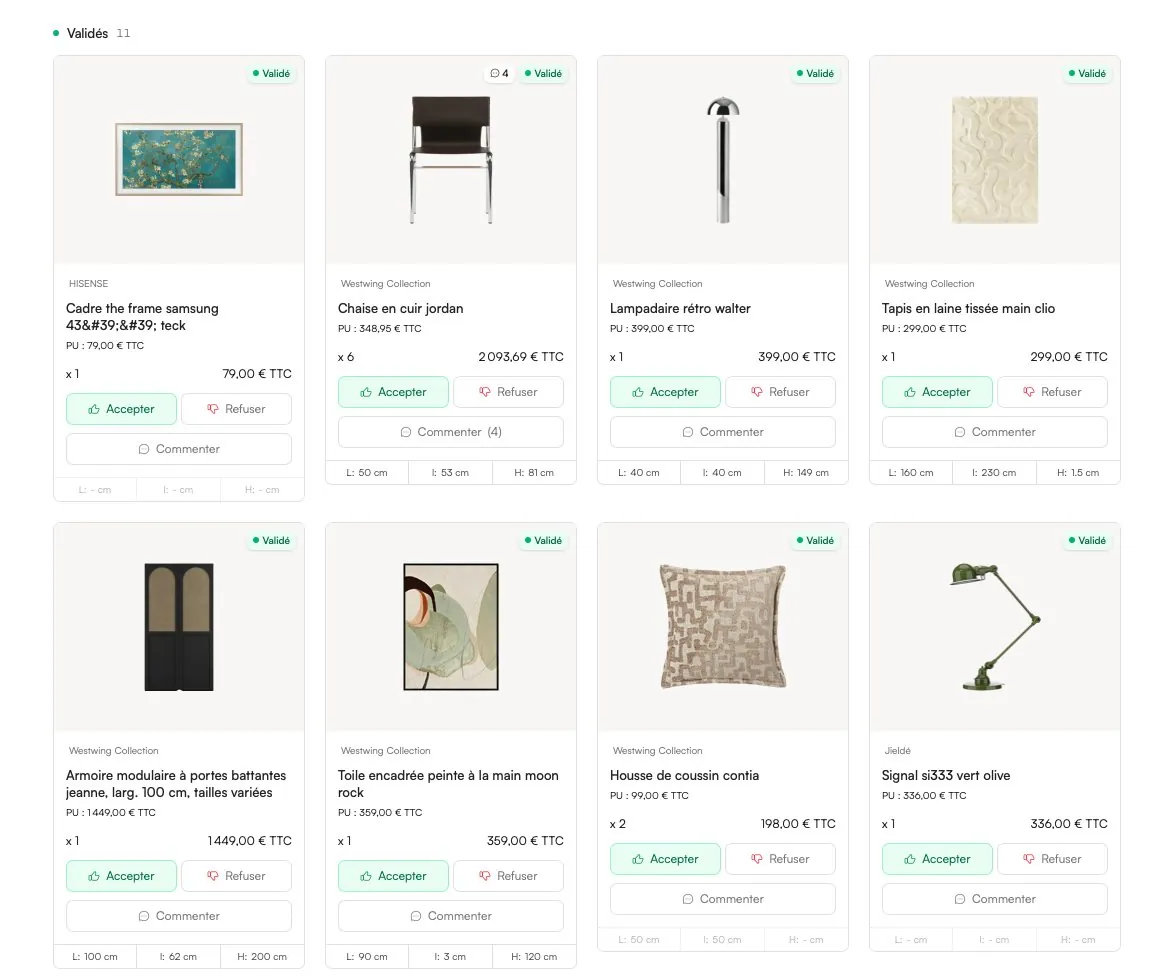
A PDF sent by email produces replies such as “we like most of it, not sure about the chair”. Which chair? Approval works better when every product has its own decision. In Phasen's client space, you share a secure link; the client does not need an account, accepts or declines each product, comments on it, compares the alternatives you shared and can even suggest a product for you to approve. You choose what they see (prices, suppliers, product links) and the link opens in English, French, Spanish or German.
The presentation itself does not have to be rebuilt by hand after each round: a presentation generated from the project picks up the updated products, prices and boards, and stays editable for your own layout choices.
A follow-up routine that gets the last approvals
- Same day: send the link with a short recap: what was agreed in the meeting, what is still open, and the deadline.
- Tie the deadline to lead times: “to keep the installation in March, we need the sofa approved by Friday” is more persuasive than a generic reminder.
- Halfway to the deadline: a brief message listing only the items still pending.
- For blocked items: a ten-minute call beats three more emails. Usually the hesitation is about price or practicality, not taste.
- At the deadline: confirm what is approved, move it to ordering and plan a smaller second round for the rest.
A recap message can be as short as this, adapted to your own tone:
Thank you for today. As agreed, the living room direction and the dining table are approved. Still open: the sofa (fabric A or B) and the bedroom lighting. Everything is in your link, where you can approve or comment on each item. To keep installation on track for March, could you confirm the remaining items by Friday 24th?
Presentation mistakes that slow approval
- Showing too many options, which turns the client into the designer.
- Inspiration images of pieces that are not in the selection.
- Inconsistent product photos, angles and backgrounds.
- Prices or dimensions in the deck that no longer match the schedule.
- No deadline, so approval drifts while lead times grow.
- Feedback collected across email, messages and calls, then summarised from memory.
Frequently asked questions
What should be included in an interior design presentation?
A strong presentation includes a recap of the brief, the concept and moodboard, renders of the key rooms, room-by-room product pages with dimensions and prices, prepared alternatives, a budget summary and next steps with deadlines. Each section should lead to a specific decision.
How do you present a design concept to a client?
Start by linking the concept to the brief, then explain the palette and materials through a moodboard, and show a render so the client can picture the room. Ask for feedback on the direction before going into individual products.
How many design options should I show a client?
One recommended direction, with two or three alternatives for the pieces most likely to be questioned, is usually enough. Presenting several complete schemes tends to delay decisions and leads to requests to combine them.
How do I get a client to approve a design faster?
Define the decisions you need before the meeting, present real products with prices, show the budget early and give the client a simple way to approve each item online. Set a deadline linked to supplier lead times and follow up on the items still pending.
Should I include prices in an interior design presentation?
Yes, at least totals per room and an overall budget, because decisions made without prices are often reversed later. Whether you show client prices only or trade prices plus a fee depends on the fee model agreed in your appointment.
Try Phasen on your next project.
Free forever for 3 active projects, no credit card required.
Keep reading
All articles ›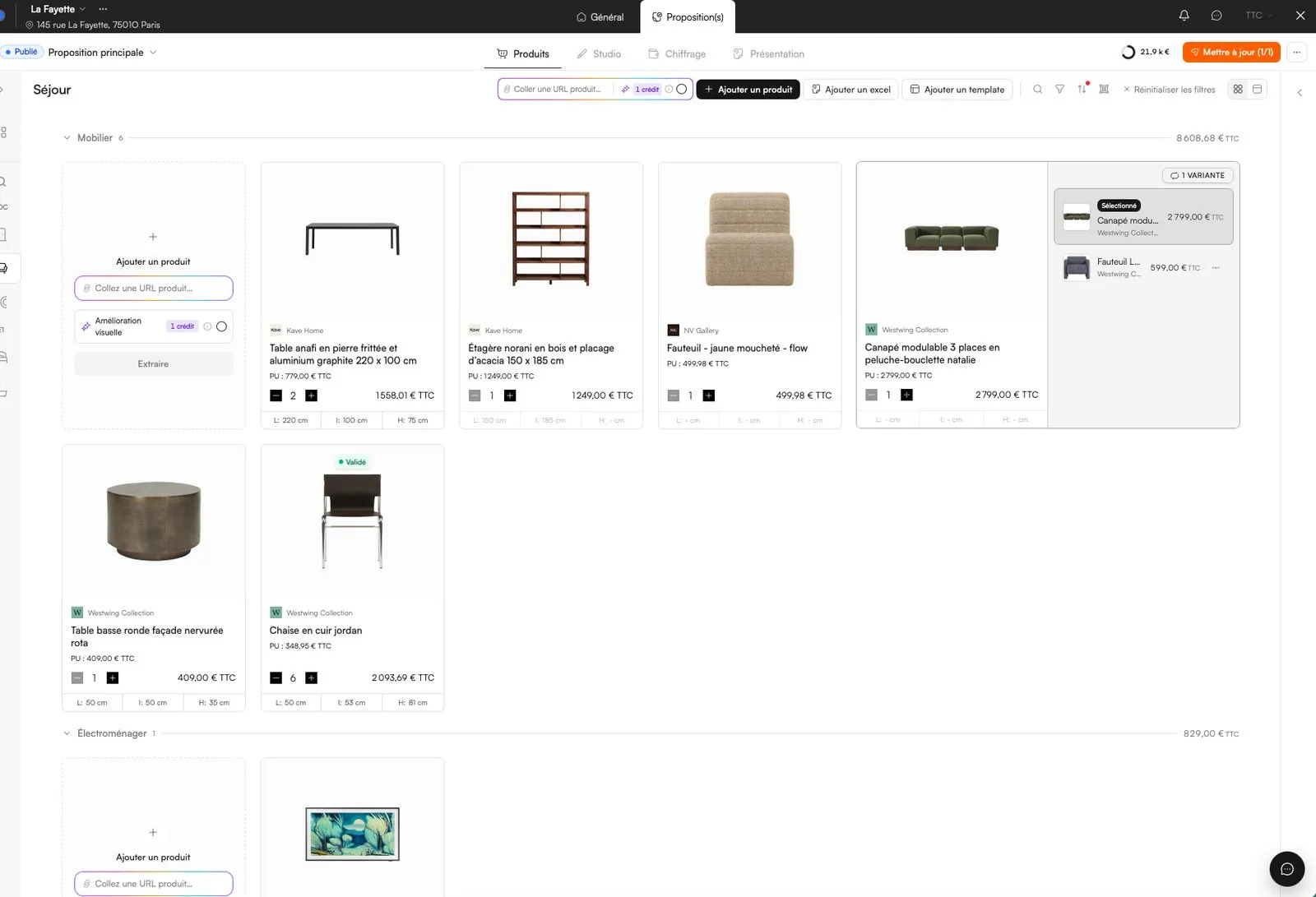
Interior Design Software: How to Choose the Right Stack
The best interior design software is the one that follows your projects from first link to final delivery. Here is how to judge tools against your real workflow, not a feature list.
Read the article ›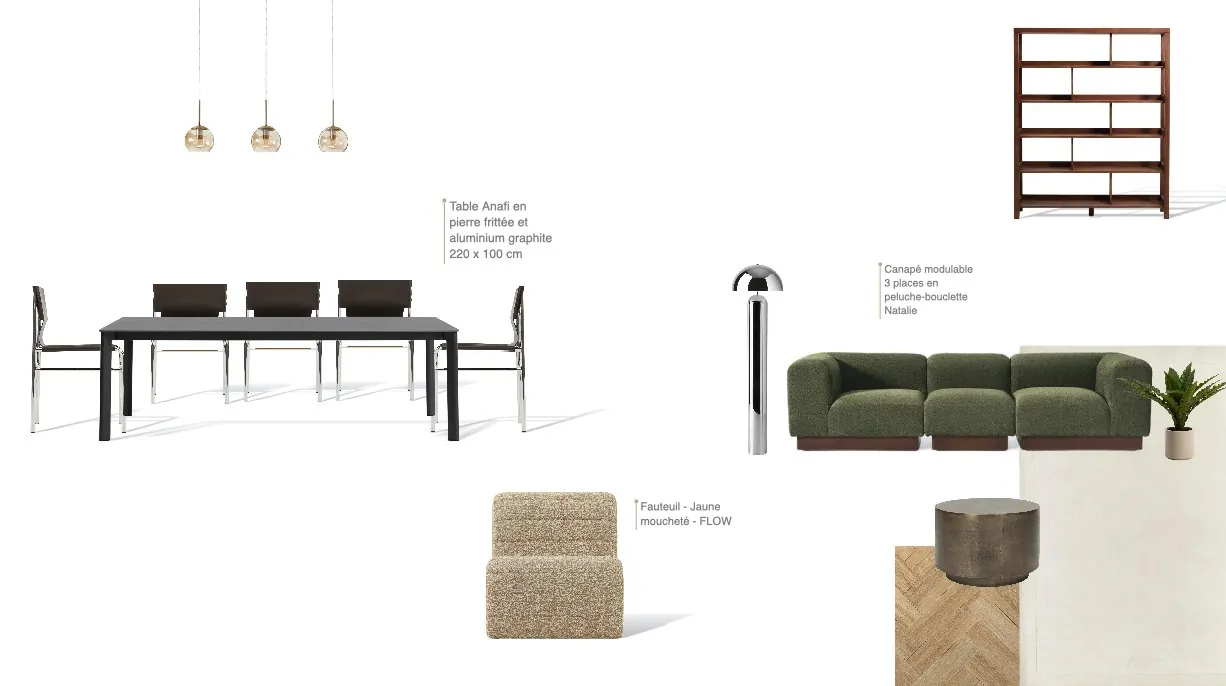
Interior Design Moodboard: A Professional Step-by-Step Guide
A professional moodboard is not a collage: it is the first decision document of the project. Here is a step-by-step method that leads straight to a buildable product selection.
Read the article ›
FF&E Schedule Template: Columns, Statuses and Tracking
The FF&E schedule is the backbone of every interiors project. Here are the columns it needs, how to structure it and how to keep it alive from sign-off to delivery.
Read the article ›